
More actions
IamMyron07 (talk | contribs) (Created page with "{{stub}} {{Repair Guide |Device=iPad Air 4 |Affects parts=Motherboard |Needs equipment= |Type= |Difficulty=3. Hard }} == Problem description == <!-- Provide a concise description of the issue here. Be as specific as possible to help readers quickly determine whether or not this is the exact problem they are facing. --> iPad Air 4 appears stuck in recovery mode. It connects to iTunes/3UTools and completes the restore process successfully, but after flashing, it immedi...") |
IamMyron07 (talk | contribs) |
||
| (2 intermediate revisions by the same user not shown) | |||
| Line 4: | Line 4: | ||
|Affects parts=Motherboard | |Affects parts=Motherboard | ||
|Needs equipment= | |Needs equipment= | ||
|Type= | |Type=Soldering | ||
|Difficulty=3. Hard | |Difficulty=3. Hard | ||
}} | }} | ||
| Line 13: | Line 13: | ||
iPad Air 4 appears stuck in recovery mode. It connects to iTunes/3UTools and completes the restore process successfully, but after flashing, it immediately reboots back into recovery mode instead of booting to the setup or lock screen. This cycle repeats even after multiple successful restores. | iPad Air 4 appears stuck in recovery mode. It connects to iTunes/3UTools and completes the restore process successfully, but after flashing, it immediately reboots back into recovery mode instead of booting to the setup or lock screen. This cycle repeats even after multiple successful restores. | ||
[[File: | [[File:IPad stuck on recovery mode.png|thumb|iPad stuck on recovery mode (Figure 1)]] | ||
== Symptoms == | == Symptoms == | ||
<!-- | <!-- | ||
| Line 29: | Line 30: | ||
# Check software first. | # Check software first. | ||
#* Use tools like 3uTools or Apple Configurator to confirm restore success. | #* Use tools like 3uTools or Apple Configurator to confirm restore success. | ||
#* If | #* If device still reboots into recovery → move on to hardware diagnostics. | ||
# Open the iPad and disconnect the power button flex. | # Open the iPad and disconnect the power button flex. | ||
#* With battery disconnected, unplug the power button flex from the logic board. | #* With battery disconnected, unplug the power button flex from the logic board. | ||
| Line 35: | Line 36: | ||
# Boot without the power button flex. | # Boot without the power button flex. | ||
#* If iPad boots to home screen successfully without power button flex connected → power flex is confirmed faulty. | #* If iPad boots to home screen successfully without power button flex connected → power flex is confirmed faulty. | ||
[[File:Power-btn-connector.png|thumb|iPad Air 4 Power button flex connector]] | |||
=== Repair Steps === | === Repair Steps === | ||
| Line 52: | Line 54: | ||
# Final testing. | # Final testing. | ||
#* Test power button functionality. | #* Test power button functionality. | ||
#* Confirm the device no longer returns to recovery loop. | #* Confirm the device no longer returns to recovery loop. (Figure 2)[[File:IPad successfully booted.png|thumb|iPad Successfully booted after disconnecting power button flex (Figure 2)]] | ||
Latest revision as of 19:41, 3 August 2025
This article is a stub. You can help Repair Wiki grow by expanding it
| IPad Air 4 Stuck on recovery mode | |
|---|---|
| Device | iPad Air 4 |
| Affects part(s) | Motherboard |
| Needs equipment | |
| Difficulty | ◉◉◉◌ Hard |
| Type | Soldering |
Problem description
iPad Air 4 appears stuck in recovery mode. It connects to iTunes/3UTools and completes the restore process successfully, but after flashing, it immediately reboots back into recovery mode instead of booting to the setup or lock screen. This cycle repeats even after multiple successful restores.

Symptoms
- iPad is Stuck in Recovery Mode (Connect to PC screen)
- Device shows up in iTunes/3UTools and completes the restore successfully
- After flashing, the device reboots straight back into recovery mode
Diagnostic Steps
- Connect iPad to PC/Mac using iTunes or Finder.
- Device is detected in Recovery Mode.
- Attempting to update or restore completes successfully but the iPad reboots back into Recovery Mode (loop).
- Check software first.
- Use tools like 3uTools or Apple Configurator to confirm restore success.
- If device still reboots into recovery → move on to hardware diagnostics.
- Open the iPad and disconnect the power button flex.
- With battery disconnected, unplug the power button flex from the logic board.
- Reconnect battery and attempt to boot.
- Boot without the power button flex.
- If iPad boots to home screen successfully without power button flex connected → power flex is confirmed faulty.

Repair Steps
- Power off and open the iPad carefully.
- Standard teardown for iPad Air 4 using heat pad and opening picks.
- Disconnect battery first for safety.
- Locate and remove the power button flex.
- Disconnect the power flex from the top section of the board.
- If needed, peel the adhesive and unroute the flex from the frame.
- Replace the power flex cable.
- Install a known good or brand new power button flex.
- Ensure connectors are clean and properly seated.
- Reconnect battery and test.
- Boot the iPad.
- It should now exit recovery and boot to the home screen without issues.
- Final testing.
- Test power button functionality.
- Confirm the device no longer returns to recovery loop. (Figure 2)
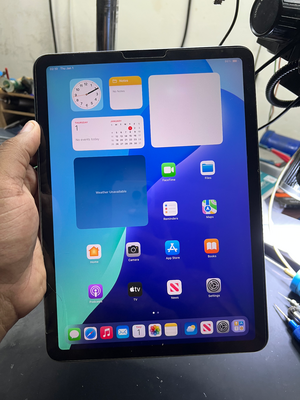
iPad Successfully booted after disconnecting power button flex (Figure 2)
